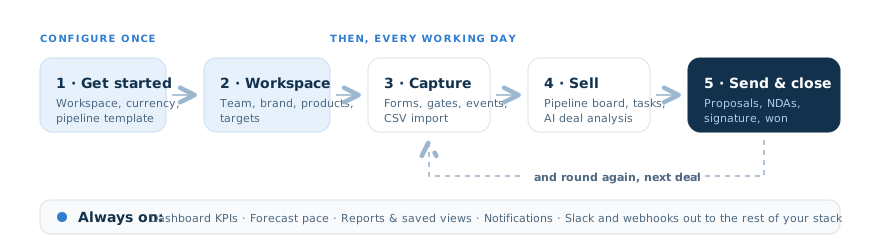
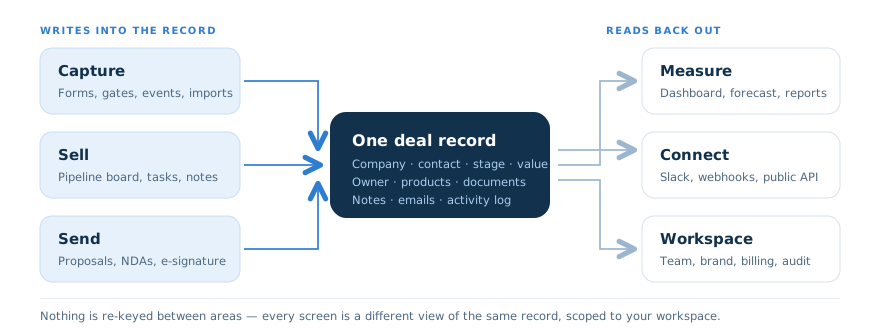
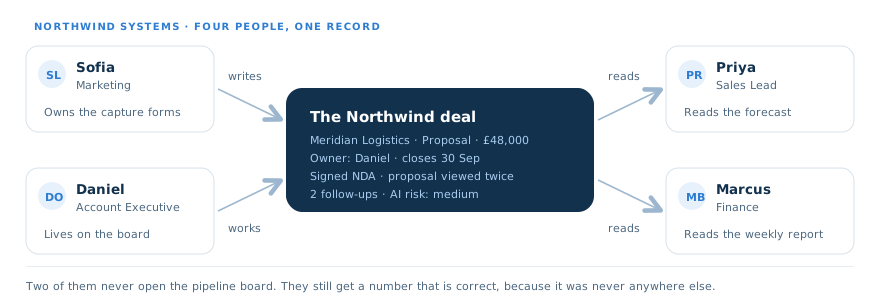
This guide walks the full Foundry CRM path using one concrete story: Northwind Systems knows it is busy but cannot say what it will close. You will see what each area is for, why it exists, and how Northwind uses it, with metaphors and diagrams along the way.
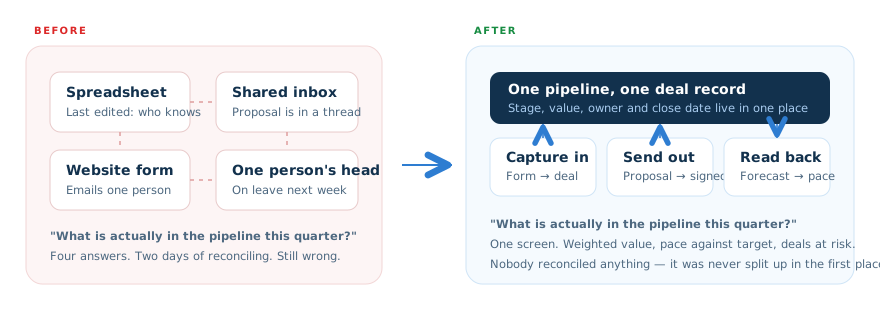
Northwind is a fourteen-person B2B software company with roughly £2.4M of open pipeline. Today that pipeline lives in a spreadsheet Priya maintains, a shared inbox where proposals go to die, and Daniel's memory. The website contact form emails one person. Nobody can answer "what will we close this quarter?" without two days of reconciling — and the answer is still a guess. They do not want a six-month CRM project. They want a number they trust by the end of the month.
→ The big metaphor: a conveyor, not a filing cabinet
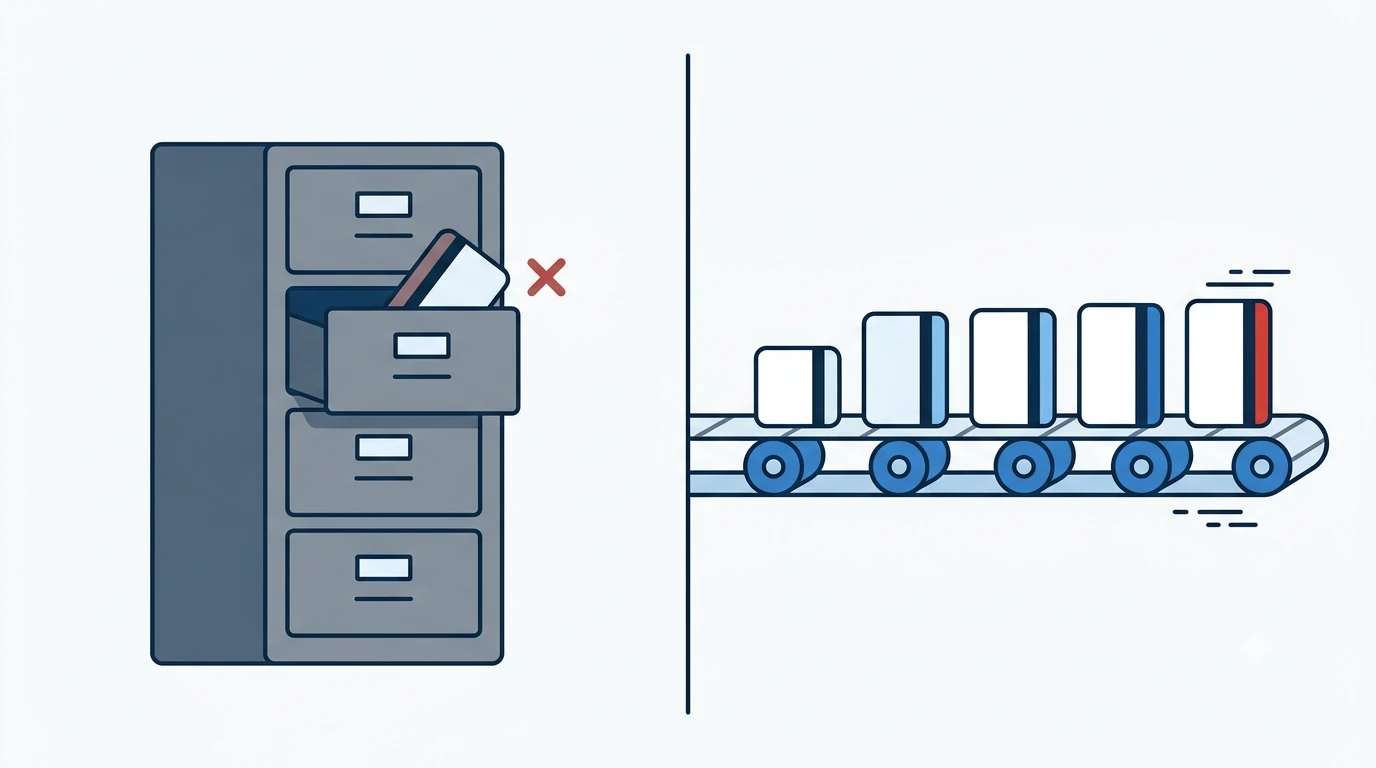
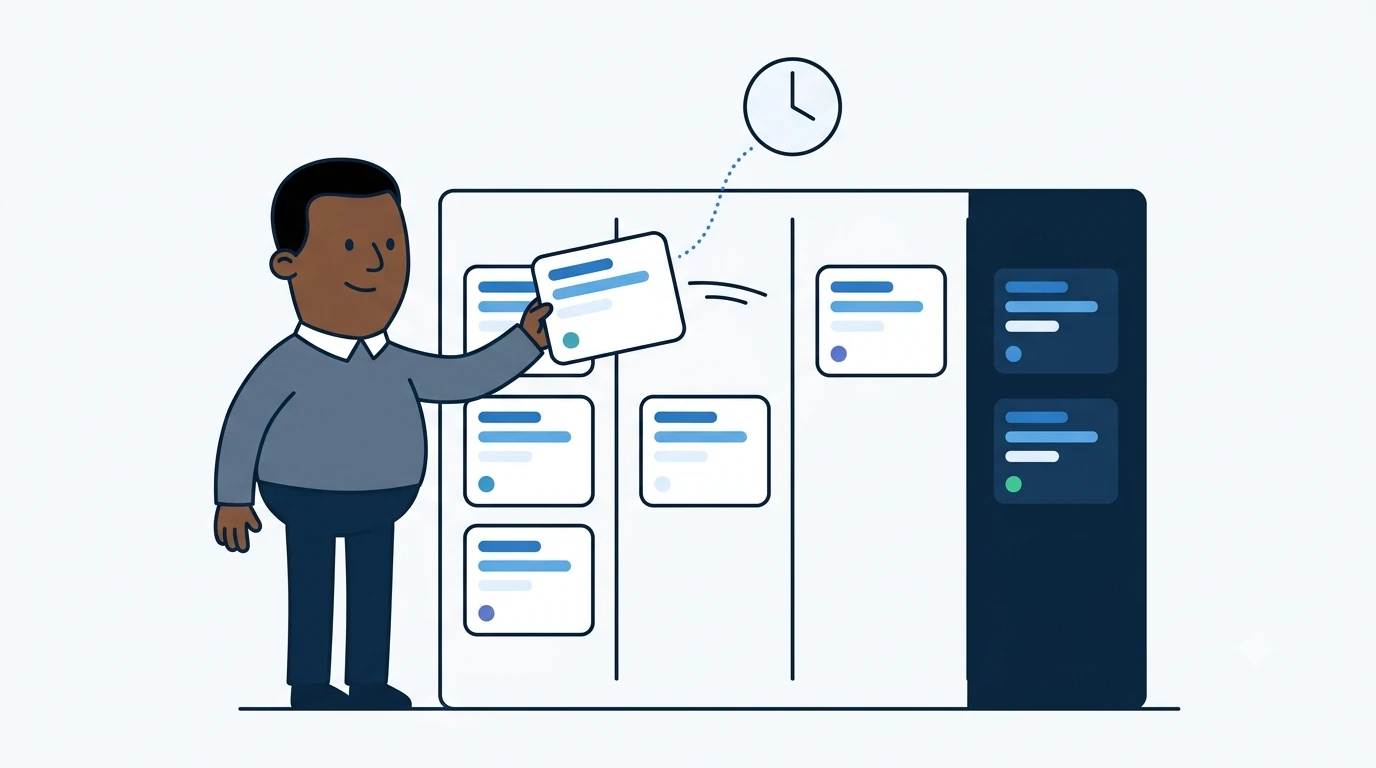
A filing cabinet stores things. You put a deal in the "proposal" drawer and it sits there, as still and as silent as the day you filed it. A conveyor is different: every position on the belt means something, and things only ever move forward or off the end. Foundry CRM treats your pipeline as a conveyor:
Stages 1 & 2
Build the belt
A pipeline template gives you the stages. You set what each stage means and how likely a deal at that position is to close.
Stage 3
Feed the belt
Capture forms and CSV imports put things onto the front of the belt automatically, instead of someone typing them in from an email.
Stages 4 & 5
Move things along
The board is the belt. Cards move right as the deal progresses, and proposals and NDAs are what get them over the last gap.
Stages 6 & 7
Read the belt
Because every position carries a probability, the dashboard and forecast can add the belt up without anyone estimating anything.
→ Where you are going
Stage 0 · Before anything else
0 Get oriented
Sign in, learn what is in the sidebar, and understand why a brand new workspace looks so quiet. It is meant to. You have not told it what you sell yet.
Why this exists
Foundry CRM is multi-tenant: every workspace is a sealed box. Signing in is how the app knows which pipeline to show you, and every query it runs is scoped to your team. Northwind never sees another company's deals, and no directory anywhere lists other customers.
1 Signing in
You sign in once and land on the Dashboard. If your workspace has not been set up yet, you are sent to the onboarding wizard first — that is Stage 1. If someone invited you by email, your invite link takes you straight into their workspace with a pending membership until an admin approves it.
Sign in→Onboarding (first time only)→Dashboard
2 What is in the sidebar
Ten destinations, and you will spend ninety percent of your time in three of them. Learn the shape once and you are never lost:
Sidebar · 1
Dashboard
Where you land. Pipeline value, win rate, deal cycle, deals at risk, target attainment, plus the deals to progress and follow-ups due today.
Sidebar · 2
Tasks & follow-ups
Everything you owe someone, with due dates. The one screen that stops deals going quiet.
Sidebar · 3
Forecast
Pace against target, projected attainment, and a recommendation. Read by leadership, edited by nobody.
Sidebar · 4
Companies & contacts
Who you sell to. Import wizards, custom fields and the record every deal hangs off.
Sidebar · 5
Pipeline board
The kanban belt. Cards, stages, drag to progress. This is where the working day happens.
Sidebar · 6
Products & services
Your catalogue with unit prices. Deal line items and proposal totals are built from it.
Sidebar · 7
Reports
Deals by stage, pipeline value breakdown, by owner, by pipeline, with an AI performance summary and a shareable weekly link.
Sidebar · 8
Pipeline Config
The configuration. Pipelines, stages, order and the win probability each stage carries.
Sidebar · 9
Settings
Team and seats, brand, capture, connections, AI, custom fields, document templates, API keys, billing, notifications, data and audit.
Sidebar · 10
Demo tours
Build a guided click-through of your own workspace — useful for onboarding a new hire or showing a prospect.
Day one looks empty, and that is correct
A brand new workspace has no deals, so every dashboard number is zero and the forecast has nothing to project. Do not go hunting for a demo dataset — the onboarding wizard offers you optional sample data if you want something to poke at. Otherwise, go to the Setup checklist on the dashboard and work down it.
Open your Foundry CRM address and sign in.
First time in a brand new organisation, you are handed to onboarding — that is Stage 1 and it takes a couple of minutes.
After that, every sign-in lands you on the Dashboard.
Tip: bookmark the dashboard, not the sign-in page. You are sent to sign-in automatically whenever your session has expired.
Open each destination so you know what an empty one looks like.
Note the revenue target bar at the bottom of the sidebar — once a target exists, it is your fastest sanity check.
Collapse the sidebar with the chevron on its edge if you want more room for the board.
Try the command palette for jumping between records without the sidebar at all.
What comes next
Nothing else in Foundry CRM works until a workspace and a pipeline exist. You cannot create a deal without a stage to put it in. Stage 1 is that.
Stage 1 · Configure once
1 Get started
The first-run wizard names your workspace, picks your currency, and gives you a working pipeline in one pass — so you are never staring at a blank product wondering what a "stage" is supposed to be.
Why this exists
Most CRM projects die in week one, on the question "what should our stages be?". The wizard answers it for you with a template that matches how you sell, and you adjust from there. Getting it slightly wrong costs nothing — stages are editable forever.
Metaphor
The template is a flat-pack instruction sheet. It does not decide what your furniture is for; it just saves you from inventing joinery from scratch on day one.
1 What the wizard asks
Sign in → Onboarding
What it asks
Why it matters
Northwind's answer
Workspace name
Names the tenant everything is scoped to; appears in the topbar switcher
Northwind Systems
Legal entity name
Used on proposals and NDAs where the trading name is not enough
Northwind Systems Ltd
Company website
Seeds brand settings and the capture form origin
northwind.example
Currency
Every deal value, quote total and forecast number is formatted in it
GBP
Pipeline template
Creates a pipeline and its stages so the board is usable immediately
B2B SaaS
Sample data
Optional demo records scoped to your team, so you can see a full board before yours exists
On, deleted after a week
2 The three templates
Template
B2B SaaS
Lead → Qualified → Proposal → Negotiation → Closed Won. The longest belt, for deals with a real evaluation in the middle.
Template
Services
Inquiry → Discovery → Proposal → Verbal → Closed Won. Built around a scoping conversation rather than a product trial.
Template
Agency
Lead → Pitch → Proposal → Closed Won. Four stages, because a pitch either lands or it does not.
Afterwards
Anything you like
Whichever you pick, Pipeline Config lets you rename, reorder, add and remove stages — and run more than one pipeline side by side.
Do not design your perfect pipeline today
Teams lose weeks arguing about whether "Qualified" should come before or after "Discovery". Pick the closest template, put this week's real deals on it, and let the friction tell you what to change. It will, within a fortnight.
Enter your workspace name, legal entity name and website.
Set your currency — every number in the product formats from it.
Pick the pipeline template closest to how you sell.
Decide on sample data. If you are the kind of person who learns by poking, turn it on.
Finish, and you land on the dashboard with a Setup checklist waiting.
Tip: sample data is scoped to your team and safe to delete later. It is not shared with anyone and nothing depends on it.
Open the dashboard and find the Setup checklist panel.
Each item links straight to the screen that completes it — no hunting.
Do them in order; each one makes the next screen more useful.
Northwind, day one
Priya ran the wizard on a Tuesday morning. B2B SaaS template, GBP, sample data on. By eleven o'clock there was a board on the screen — someone else's fake deals, but a board. By the afternoon the fake deals were gone and eleven real ones were in their place.
What comes next
You have a pipeline. Now give it the things it needs to be useful to more than one person: teammates, a brand, a product catalogue and stage probabilities.
Stage 2 · Configure once
2 Shape the workspace
Invite the people, load the catalogue, put your logo on the documents, and tell each pipeline stage how likely it is to close. This is the afternoon that makes every later screen correct.
Why this exists
Everything downstream borrows from here. The forecast borrows stage probabilities. Proposals borrow your brand and your product prices. Notifications borrow your team list. Skip this stage and the product still works — it is just quietly wrong in four places at once.
1 Team and seats
Settings → Teams
Invite teammates by email — they do not need an account first. An invite creates a pending membership; once accepted, they appear against a seat. Seat usage is visible in the workspace ("3 of 5 seats") so nobody discovers a limit mid-sale. Roles are deliberately plain-language: admins can change settings, integrations and destructive actions; members work deals.
2 Products and services
Products & Services → Add product or service
Your catalogue: name, description, category and unit price. It matters more than it looks. When Daniel adds line items to a deal, he picks from this list, sets quantity or seats, and the quote total falls out. That same total is what the proposal prints. If your catalogue is wrong, your proposals are wrong.
3 Brand and document templates
Settings → Brand · Settings → Document templates
Logo, colours, company blurb and legal links. These are what a prospect actually sees, because proposals and NDAs are rendered on a public link with your brand on them, not Foundry's. Templates are selectable at send time, so a services proposal and a licence renewal can look different.
4 Pipeline stages and probabilities
Pipeline Config → Stage editor
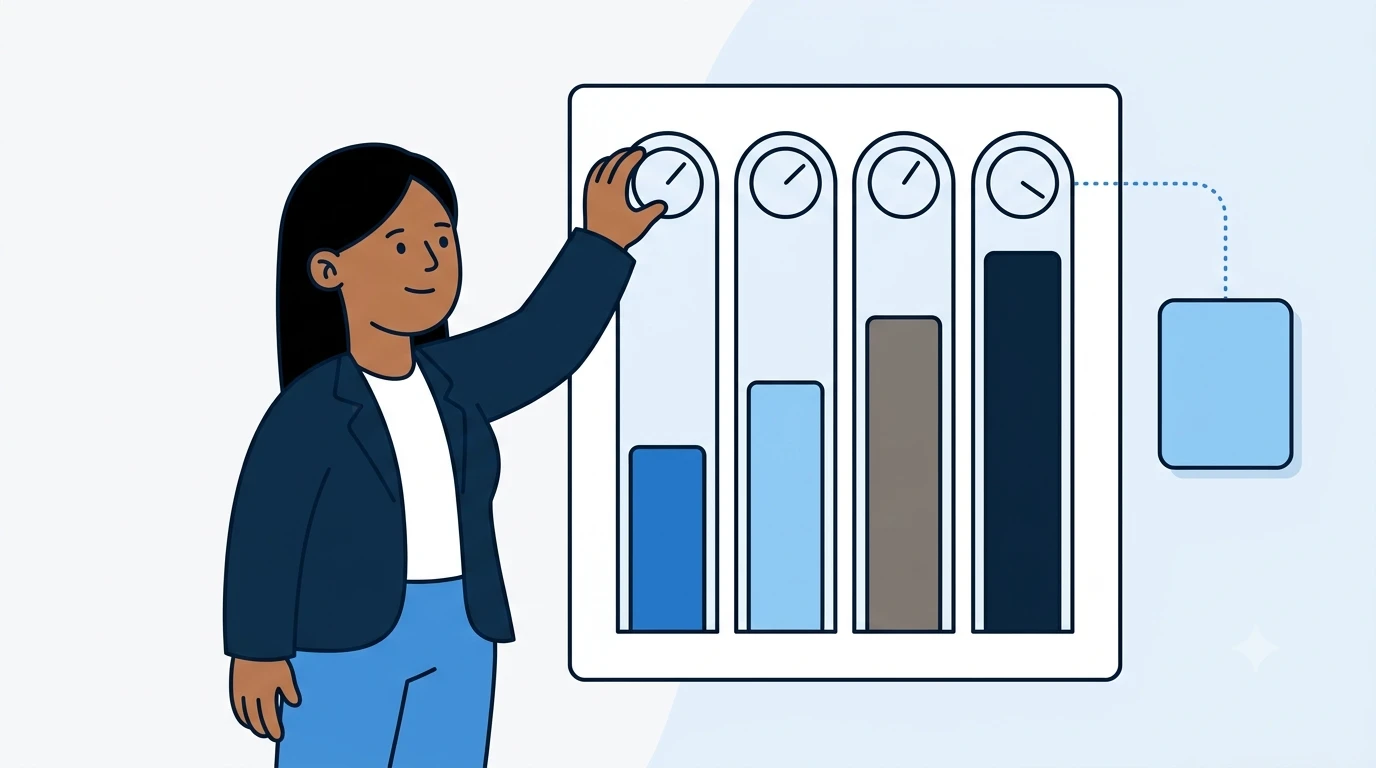
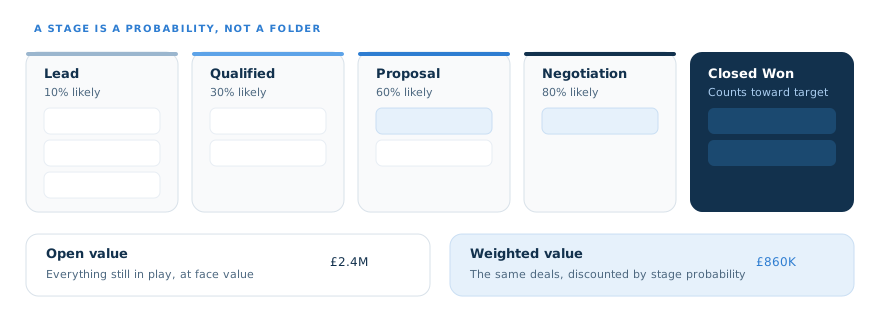
This is the single most consequential screen in the product, and it takes ten minutes. Each stage gets a name, a position and a win probability. The probability is what turns a board into a forecast.
Stages as folders
"Proposal" just means a document exists somewhere
Forecast is a person's opinion, typed into a cell
Two people disagree about what "Qualified" means
Cards sit still and nobody notices
vs
Stages as probabilities
Each stage has an agreed meaning and a number
Weighted forecast updates the moment a card moves
"Qualified" is defined by what must be true to enter it
A stale card is visible as risk on the dashboard
Be honest about probabilities
The temptation is to set every stage optimistically so the weighted number looks healthy. Resist it — you are only lying to yourself, one quarter in advance. Start from your actual historical win rate at each stage. If you do not have one, start conservative and correct after a quarter of real data.
5 Targets, custom fields and AI
Forecast
Set a revenue target
A period target is what turns the forecast into "are we on pace?" and lights up the sidebar's target bar.
Settings · Custom fields
Add up to ten fields
The handful of things you record that nobody else does. They appear on the company and contact modals and come back through the API.
Settings · AI
Decide on AI
Workspace AI is a switch. On, you get deal scoring, drafted follow-ups and note summaries against a visible credit meter. Off, nothing calls a model.
Settings · Notifications
Choose what pings you
Task reminders, proposal viewed, NDA signed, and a daily or weekly "deals to progress" digest — set per person, not per workspace.
Add each teammate by email address; they get an invite and a pending membership.
Set each person admin or member. Be sparing with admin.
Check seat usage against your plan before you invite the whole company.
Add each product or service with a category and unit price.
For anything you sell per seat, price it per seat — quantity does the rest on the deal.
Long catalogue? Use the CSV import for products instead of typing.
Tip: you do not need every SKU on day one. Add the five things you actually sell most, and grow the list when a deal needs something new.
Upload your logo and set your brand colours.
Write the short company blurb that heads a proposal.
Add your legal links — terms and privacy — so NDAs and proposals point somewhere real.
Send yourself a test proposal and look at it as a client would.
Open Pipeline Config and the stage editor for your pipeline.
Rename or reorder stages so they match the words your team already uses out loud.
Give each stage a win probability. Write down what has to be true for a deal to enter it.
Go to Forecast and set the revenue target for the period.
Tip: the definition matters more than the number. "Qualified means we have spoken to someone with a budget" beats any percentage you argue about.
What comes next
The belt is built. Now stop typing leads in by hand and let your own website feed it.
Stage 3 · Every working day
3 Capture
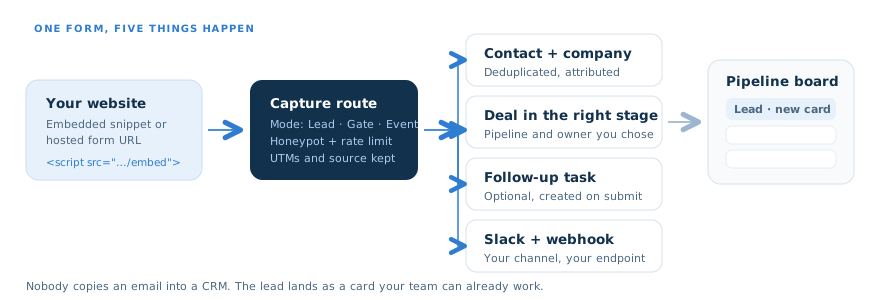
A form on your own website that creates the contact, the company, the deal in the right stage, the owner and the follow-up task — instead of emailing one person who might be on leave.
Why this exists
The gap between "someone was interested" and "someone is working it" is where most small companies leak revenue. Every manual step in that gap is a place a lead can be dropped. Capture removes all of them: the lead is a working card before anyone has read an email.
Metaphor
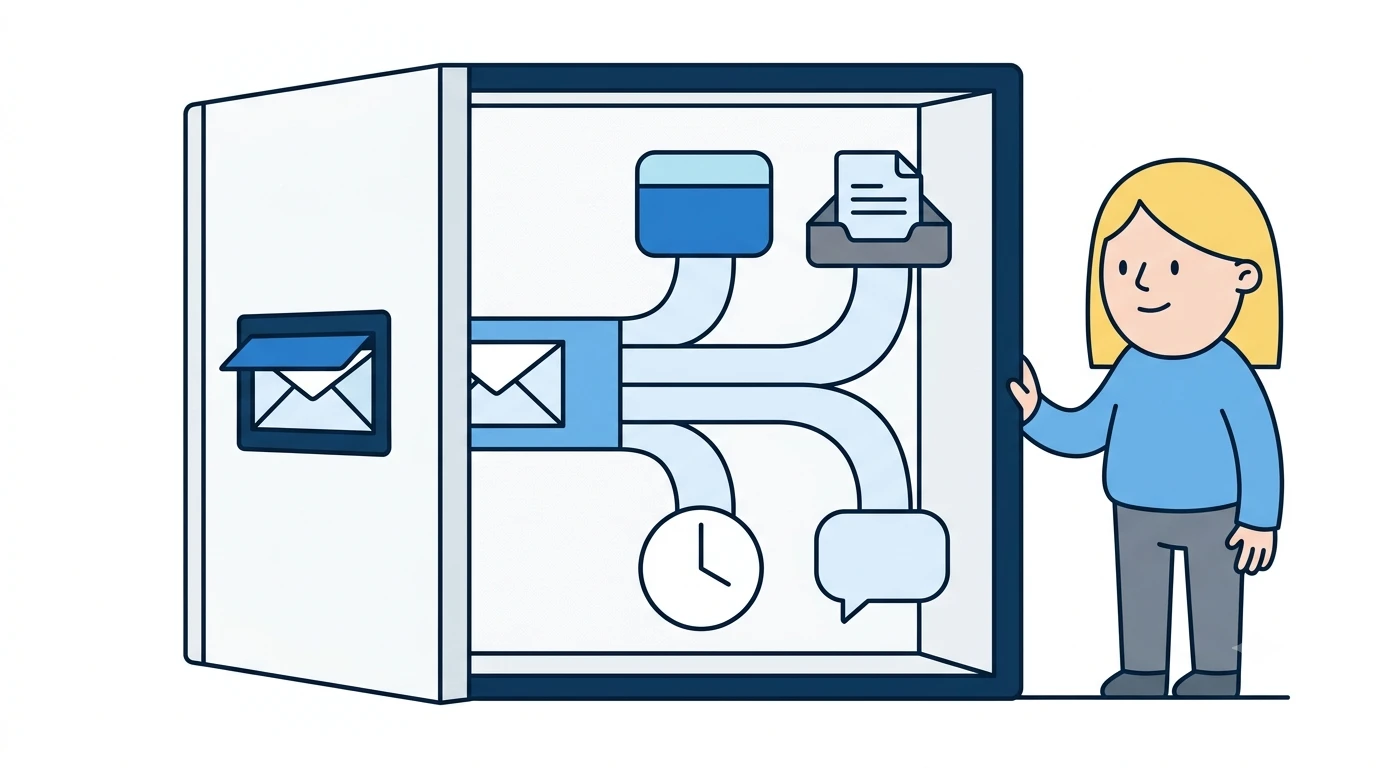
A capture route is a letterbox with a sorting office behind it. The visitor just posts something. What happens next — which pipeline, which stage, which owner, which channel gets told — you decided once, in advance.
1 The three modes
Mode
Lead
The classic "contact us". Creates a contact and a deal in the pipeline and stage you nominated, owned by the person you nominated.
Mode
Gate
Content behind a form. Creates the contact and issues a signed unlock link with an expiry, so the whitepaper is not just sitting on a public URL.
Mode
Event
Sign-ups with tags, a capacity limit, a confirmation email and a calendar link. Useful for webinars and workshops.
On every mode
Attribution
Source label, form name and UTMs are stored on the contact and the deal, so "where did this come from?" is answerable months later.
2 Building a form
Settings → Capture → New form
You give the form a name and a mode, choose its fields (email, phone, select, textarea and so on), then set the routing: which pipeline, which stage, which owner. Turn on create a task on submit if you want a follow-up to appear automatically. Write a thank-you message. Save.
Foundry then hands you two ways to use it: an embed snippet to paste into your site, or a hosted form URL if you would rather link to it. There are copy-paste instructions for WordPress, Webflow and plain HTML right in the settings screen.
3 Keeping the junk out
Public forms attract bots. Every capture route ships with a honeypot field and rate limiting, and you can add a Turnstile challenge if a particular form gets targeted. Per-form analytics — views, submits, conversion — tell you whether a form is working, or just quietly broken.
4 The other way in: CSV
Companies & Contacts → Import
You almost certainly have a spreadsheet of contacts already. The import wizard maps your columns to fields, shows you a duplicate review step before anything is committed, and imports companies, contacts and products. Nothing lands until you have looked at what it is about to do.
Export your existing contacts and companies to CSV.
Run the import wizard and map your columns to Foundry's fields.
Work the duplicate review step properly — it is much cheaper than merging records later.
Commit, then spot-check ten records against your source.
Create a form in Lead mode and name it after the page it will live on.
Pick the fields. Fewer fields, more submissions — ask for what you genuinely need.
Route it: pipeline, stage and owner.
Turn on create a task on submit so somebody owes the lead a reply.
Write the thank-you message the visitor sees.
Tip: name forms after the page, not the campaign — "Pricing page enquiry" is still meaningful in eighteen months. "Q3 push" is not.
Copy the embed snippet, or the hosted form URL if you prefer to link.
Paste it into your site using the instructions for your platform.
Submit the form yourself, as a stranger would.
Check the pipeline board: a card should be sitting in the stage you chose, owned by the right person, with a task against it.
Delete your test record — it goes to the recycle bin, not the void.
Northwind, week two
Sofia replaced the mailto link on the pricing page with a Lead form routed to Daniel, put a Gate in front of the integration whitepaper, and set the webinar page up as an Event with a capacity of 80. The shared inbox stopped being load-bearing. Nobody has argued about who was supposed to reply to a lead since.
What comes next
Cards are arriving on their own. Stage 4 is what you do with them.
Stage 4 · Every working day
4 Sell
The pipeline board is the belt, and the opportunity detail is what is inside each box. This is the screen your team has open all day, so it is the one worth learning properly.
Why this exists
A list of deals tells you what exists. A board tells you where everything is — and, at a glance, where it is stuck. Moving a card is a deliberate act, which is exactly why it is a trustworthy signal: nothing changes stage by accident.
1 The board
Pipeline Board
One column per stage, one card per deal, showing the company, the value and the state of its documents. Drag a card to the next column to progress it. The moment you do, the weighted forecast changes, the activity log records it, and any automation you have wired to stage changes fires.
2 Inside a deal
Pipeline Board → any card → Opportunity detail
Tab / panel
What it holds
When you use it
Deal details
Company, primary contact, stage, value, owner, close date
Every time the shape of the deal changes
Pipeline progress
Where the deal sits on the belt and how it got there
Before a pipeline review
Products / services
Line items with quantity or seats, unit price, line total, quote total
Before you send a proposal
Notes
Free-text history of what was actually said
After every real conversation
Emails
Logged email conversations against the deal
When you need to know who said what
Documents
Proposals and NDAs, with their signed copies
Any time someone asks "did they sign?"
Follow-ups
Tasks with due dates against this deal
The moment you promise anyone anything
AI deal analysis
Risk signals and suggested next actions
When a deal feels off and you cannot say why
3 Tasks: the thing that stops deals dying
Tasks & Follow-ups
Every promise you make becomes a task with a due date. The dashboard surfaces follow-ups due and deals to progress; notifications remind you as due dates approach; and an optional daily or weekly digest emails you the list. A deal going quiet stops being something you discover by accident.
4 AI deal analysis
If workspace AI is on, a deal can be scored against its own history: what the risk signals are, what to do next, and a drafted follow-up if you want one. It can refresh automatically when a deal changes stage. Every call is metered against a visible credit balance, and the whole feature is a single switch you can turn off.
The board is only as honest as your losses
The strongest temptation in any CRM is to leave dead deals sitting in Proposal because closing them as lost feels like an admission. Do not. Use Close deal, record the loss reason, and let it go. Your win rate, your deal cycle and your forecast are all built from closed deals — a board full of zombies makes every one of those numbers a lie.
Use Add deal for each live opportunity you are actually working.
Set company, primary contact, value, owner and expected close date.
Drop each one in the stage it honestly sits in today.
Stop at ten or so. You are proving the shape works, not migrating history.
Open a card and add its products and services line items until the quote total is right.
Write a note recording what was actually agreed on the last call.
Add a follow-up task with a real due date.
If AI is on, run the deal analysis and see whether its risk signals match your gut.
Tip: notes are worth more than fields. Six months on, "they need it live before their audit in March" explains the whole deal.
Open the dashboard and clear follow-ups due.
Look at deals to progress and move or close what you can.
Close anything dead as lost, with a reason.
Turn on the daily digest so the list arrives whether or not you remember to look.
What comes next
Somewhere around the Proposal stage, a deal needs a document. Stage 5 is how it leaves and how it comes back.
Stage 5 · Every working day
5 Send & close
Proposals and NDAs built from the deal's own numbers, sent on your brand, signed on a public link, and filed straight back onto the deal.
Why this exists
The moment a proposal leaves as an email attachment, it stops being part of your pipeline. You cannot tell if it was opened, you cannot tell if it was signed, and the version that comes back lives in one person's inbox. Keeping the document attached to the deal closes that hole.
1 Sending a proposal
Opportunity detail → Send proposal
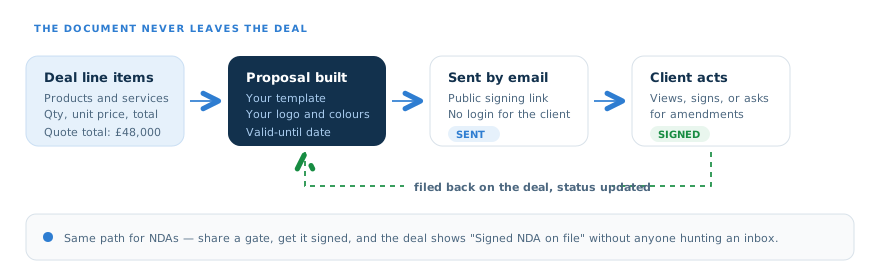
The proposal is assembled from the deal's own line items, so the quote total on the document and the value on the card cannot drift apart. You pick a template, set a valid-until date and a recipient email, and send. Your brand settings supply the logo, the colours and the legal links.
2 What happens after it lands
Your client gets a link. They do not need an account, a login or a PDF reader — the proposal opens as a page. The deal then tracks the state honestly: sent, viewed, signed, or amendments requested. When it is signed, the signed copy is filed under the deal's documents and the deal shows "signed proposal on file". If you have notifications on, you hear about the view and the signature as they happen.
3 NDAs work the same way
Opportunity detail → Share NDA
Same path, different document. Share it, get it signed on a public link, and the deal shows "signed NDA on file" without anyone searching an inbox for an attachment from March. Templates are selectable at send time here too.
4 Closing the deal
Opportunity detail → Close deal
Won or lost, close it explicitly. A won deal counts toward target attainment and can fire a Slack message or an outbound webhook. A lost deal takes a loss reason, which is the raw material for every "why are we losing?" conversation you will have later.
Check the deliverability before you need it
Transactional email is only as good as the domain it comes from. Send yourself a proposal and an NDA early, from a real external address, and check they arrive in the inbox rather than the spam folder. Sorting that out on a Tuesday is fine. Sorting it out while a client waits is not.
Open a test deal and add a couple of line items.
Send the proposal to your own external address.
Open it as a client would — on a phone, not just your laptop.
Sign it, and check the signed copy appears under the deal's documents.
Review the default proposal and NDA templates against what you actually send today.
Create a second template if you sell two quite different things.
Confirm your legal links resolve to real pages.
Use Close deal rather than dragging a card into limbo.
On a loss, record the reason. Be specific — "price" and "we were too slow" lead to different fixes.
Check the dashboard: win rate and deal cycle should both have moved.
Northwind, the Meridian deal
Daniel sent Meridian Logistics a £48,000 proposal on the Thursday. It was viewed twice on the Friday — which he knew, because the deal said so — so he called on the Monday instead of waiting politely for a fortnight. Signed on the Wednesday. The signed copy is under the deal, where Marcus in finance found it without asking anyone.
What comes next
The loop is running. Stages 6 and 7 are where you get paid back for keeping it honest.
Stage 6 · Read it back
6 Measure
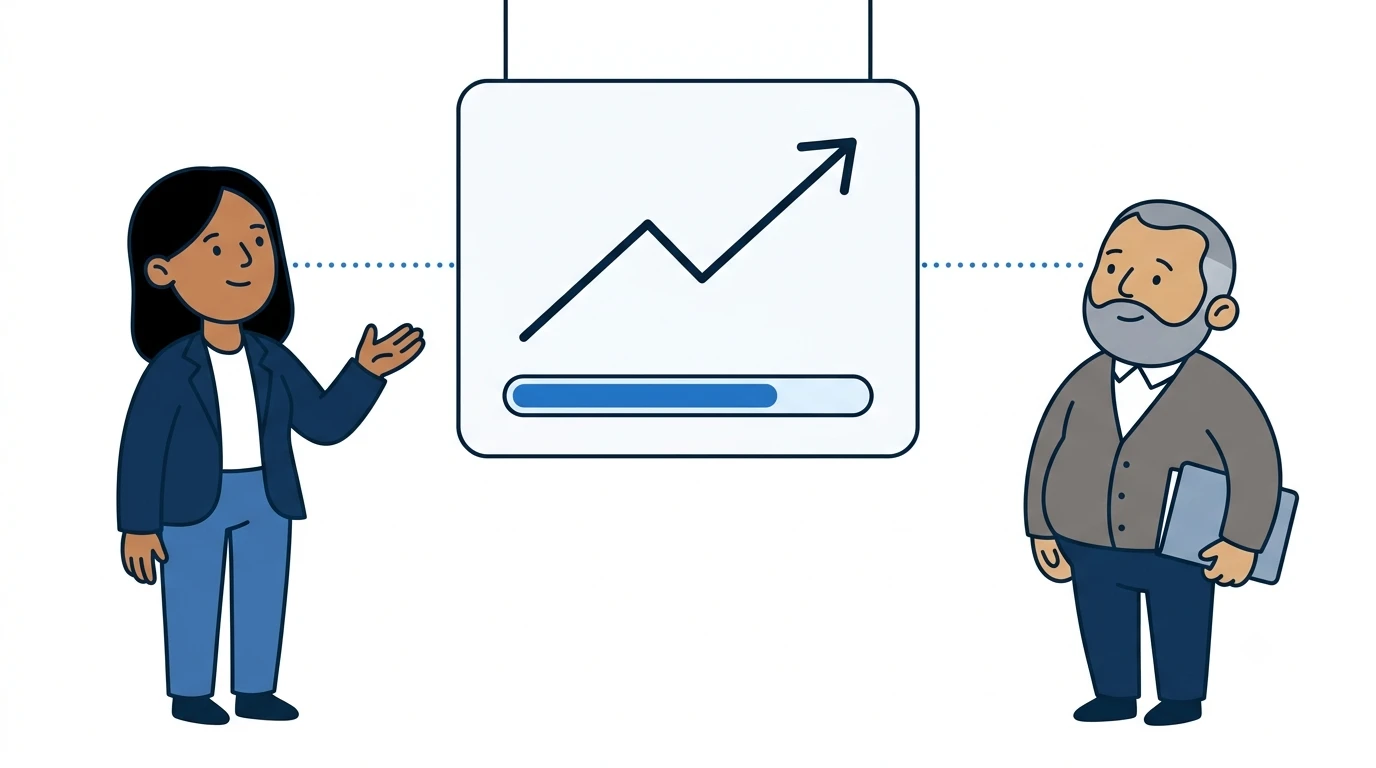
The dashboard, the forecast and the reports do not ask anyone for an estimate. They add up what the board already says — which is why they are worth trusting.
Why this exists
Reporting is usually a separate act of work: export, pivot, clean, argue. Here it is a read of the same records the team already maintains as part of selling. Nobody produces the number; the number is a consequence.
1 Dashboard
Dashboard
What it shows
What it is telling you
Pipeline value
Everything open, at face value
Win rate
Won as a share of everything closed — only honest if you close your losses
Average deal cycle
How long a deal really takes, in days
Deals at risk
The ones that have gone quiet or slipped their close date
New this month
New deals created, against last month
Target attainment
Won value against the period target — this is the sidebar bar too
Deals by stage
The funnel, with empty stages still shown so gaps are visible
Weekly activity
Created, won and lost over the last eight weeks
Deals to progress · Follow-ups due
Your actual to-do list for today
Recent activity
What changed, and who changed it
2 Forecast
Forecast
The forecast answers one question: are we on pace? It compares actual won value against what you would expect by this point in the period, projects where you land if nothing changes, and shows projected attainment against target. Forecast categories and a recommendation sit alongside it. Filter by owner or pipeline when you need to know whose number is moving.
3 Reports and saved views
Reports
Deals by stage, pipeline value breakdown, performance by owner and by pipeline, filtered by close date range, stage, owner and pipeline. An AI performance summary puts the movement into words if workspace AI is on. Save the filter combinations you keep rebuilding — my deals, at risk, this quarter — and reuse them. Export any major list to CSV.
4 The shareable weekly report
Some people need the numbers but will never log in — a board member, a co-founder, finance. The weekly sales report generates a shareable link they can open without a seat. This is usually the moment a leadership team stops asking for a slide deck.
Reporting as a task
Someone exports and pivots every Friday
The number is as old as the last export
Two people produce two different decks
Nobody can drill into a figure they doubt
vs
Reporting as a read
The board is the source; no export step exists
The number is as old as the last card move
One link, shared, same for everyone
Click a figure and you are looking at the deals behind it
Open Forecast and compare actual won against expected by now.
Look at projected attainment. If it is uncomfortable, that is the point.
Filter by owner to see whose pipeline is carrying the period.
If the number feels wrong, the fix is almost always on the board — stale cards or dishonest stages.
Build "my deals", "at risk" and "this quarter" and save each one.
Share the convention with the team so everyone means the same thing by "at risk".
Export one to CSV to confirm the columns are what finance needs.
Generate the shareable weekly sales report link.
Send it to the people who currently ask you for a figure by email.
Agree that this link is now the answer to that question.
What comes next
The numbers are right inside Foundry. Stage 7 gets them out to everywhere else your company already looks.
Stage 7 · Read it back
7 Connect
Slack for the moments worth celebrating, webhooks for the systems that need to know, and a read API with your own keys for everything else.
Why this exists
A CRM nobody looks at is a CRM nobody updates. Pushing the interesting moments into the places your team already lives keeps it alive — and pushing the data into the systems that need it stops anyone re-keying deals into a second tool.
1 Slack
Settings → Connections → Incoming webhook URL
Paste a Slack incoming webhook URL and pick what goes to the channel: won deals and form submits are the two that earn their place. A won deal appearing in a team channel does more for CRM adoption than any training session.
2 Outbound webhooks
Settings → Connections → Outbound webhooks
Give Foundry an HTTPS endpoint and it posts events as they happen — contact created, deal stage changed, proposal signed, deal won. Each request carries an X-Foundry-Signature header signed with your workspace's own secret, so your endpoint can verify it really came from your workspace. If you would rather not write an endpoint at all, there are documented Zapier and Make recipes.
3 The public read API
Settings → API keys
Create a key and it is shown once. Keys are prefixed fcrm_, scoped to the workspace that created them, and revocable — a revoked key returns 401 immediately. Send it as Authorization: Bearer fcrm_… against /api/v1 for paginated reads of companies, contacts and opportunities, custom fields included.
Create key→Copy it now→Bearer /api/v1→Revoke when done
4 Getting data out wholesale
CSV export sits on every major list. A full workspace export in JSON or CSV lives in Settings → Data, alongside the recycle bin and workspace deletion. Your data is yours, and leaving is a button rather than a support ticket.
Settings · Data
Recycle bin
Companies, contacts and deals soft-delete. Restore them here rather than rebuilding them from memory.
Settings · Audit
Audit trail
The activity log surfaced for admins: who changed what, and when. The answer to "who deleted that?".
Settings · Billing
Plans and seats
Trial to paid via Stripe, with a customer portal. Plans cover seats, AI credits, form submissions and storage.
Demo tours
Guided tours
Record a click-through of your own workspace and share it — for onboarding a new hire, or walking a prospect through their own data.
Create an incoming webhook in Slack for the channel your sales team actually reads.
Paste the URL into Settings → Connections.
Enable won deals and form submits.
Close a test deal as won and check the message arrives.
Decide which event actually matters downstream — usually deal won or proposal signed.
Register your HTTPS endpoint in Settings → Connections.
Verify the X-Foundry-Signature header on your side before trusting a payload.
No endpoint to hand? Follow the documented Zapier or Make recipe instead.
Tip: resist wiring up every event on day one. One webhook that someone relies on beats six that nobody has read.
Create a key and store it in your password manager — it is shown once.
Call GET /api/v1/companies with the bearer header.
Check the paginated shape: page, pageSize, total, items.
Revoke the key when whatever you built it for is finished.
What comes next
That is the whole journey. The checklist puts it in one list you can work down in an afternoon.
Wrap-up · End to end
Northwind, end to end
Everything above, in the order Northwind actually did it. Stages 1 and 2 are one afternoon. Stage 3 is a morning. The rest is how you work from then on.
1 The afternoon of setup
1Run the onboarding wizard: workspace name, legal entity, currency, pipeline template. Turn sample data on if you want something to look at.
2Invite your team by email in Settings → Teams and set admin versus member.
3Load the five things you sell most into Products & Services with real unit prices.
4Put your logo, colours, blurb and legal links into Settings → Brand.
5Open Pipeline Config. Rename stages to the words your team says out loud, and give each one an honest win probability.
6Set a revenue target on Forecast so the sidebar bar and target attainment mean something.
7Decide on workspace AI and set your notification preferences.
2 The morning of loading
8Import your existing companies and contacts by CSV, working the duplicate review step properly.
9Add this week's ten real deals to the board, each in the stage it honestly sits in.
10Build one Lead capture form, route it to a pipeline, stage and owner, and turn on create-a-task-on-submit.
11Embed it, submit it as a stranger, and confirm the card appears on the board.
12Delete the sample data once your real deals outnumber it.
3 The daily loop, from then on
13Clear follow-ups due and work deals to progress off the dashboard each morning.
14Move cards as deals actually move, and write a note after every real conversation.
15Build line items on the deal, then send the proposal — never rebuild a document by hand.
16Close deals explicitly, won or lost, and always record a loss reason.
4 The weekly and monthly rhythm
17Read Forecast for pace against target and projected attainment before your pipeline review.
18Share the weekly sales report link with anyone who asks for numbers but has no seat.
19Check deals at risk and reassign owners whose boards have got too full.
20Once a quarter, revisit your stage probabilities against your real win rates and correct them.
Northwind, one quarter in
The spreadsheet has not been opened since March. Priya's pipeline review takes fifteen minutes instead of two days, and she spends it arguing about deals rather than about numbers. Marcus has a link. Sofia can tell you which page produced which won deal. And Daniel, who was the most sceptical of the four, has the board open on a second monitor all day — not because anyone asked him to, but because it is where his work is.
Wrap-up · The usual questions
? Frequently asked
The questions that come up in the first fortnight, answered before you have to ask them.
Can we run more than one pipeline?
Yes. Pipeline Config manages multiple pipelines, each with its own stages and probabilities. Capture forms route to a specific pipeline and stage, and the dashboard, forecast and reports can all be filtered by pipeline. New business and renewals are a common split.
What if we pick the wrong pipeline template?
Nothing is locked. Stages can be renamed, reordered, added and removed at any time from the stage editor. The template only decides what exists on day one so you are not staring at an empty board.
Do our clients need an account to sign a proposal or NDA?
No. Proposals and NDAs are sent as a public signing link. The client opens a branded page, reads it and signs. The signed copy is filed back under the deal automatically.
Someone deleted a company by mistake. Is it gone?
No. Companies, contacts and deals are soft-deleted into a recycle bin and can be restored from Settings → Data. The audit trail in Settings shows who deleted it and when.
Can we turn AI off completely?
Yes. Workspace AI is a single switch in Settings → AI. With it off, nothing calls a model. With it on, usage is metered per workspace against a visible credit balance with a soft limit, so costs cannot run away quietly.
Is our data visible to other Foundry CRM customers?
No. Every query is scoped to your team, inbound webhooks are authenticated with your own per-tenant secret, and there is no public directory listing other workspaces.
How do people who do not need a seat see the numbers?
Share the weekly sales report link. It opens without a login and without consuming a seat — designed for a board member, a co-founder or finance who want the figures and nothing else.
Can we get our data out?
Yes, three ways: CSV export from every major list, a full workspace export in JSON or CSV from Settings → Data, and a paginated public read API using bearer keys you create and revoke yourself.
How many custom fields can we add?
Up to ten definitions per workspace. They appear on the company and contact modals and are returned by the public API. The limit is deliberate — a CRM with forty custom fields is one nobody fills in.
What is the minimum viable start?
One pipeline, ten real deals, and honest stages. That alone gives you a weighted forecast and a win rate. Add the capture form when the board is already something your team looks at daily — not before.